AI News: Claude's Free Upgrade & ChatGPT Deep Research
Worth Knowing: February 12, 2026
Big moves from the big three today. Whether you're a free user, a researcher, or someone who just wants their AI to know them better, there's something new for you.
Claude's "Office" Upgrade
TL;DR: The free version of Claude can now edit files (like Excel and Word) and connect directly to apps like Canva and Slack.
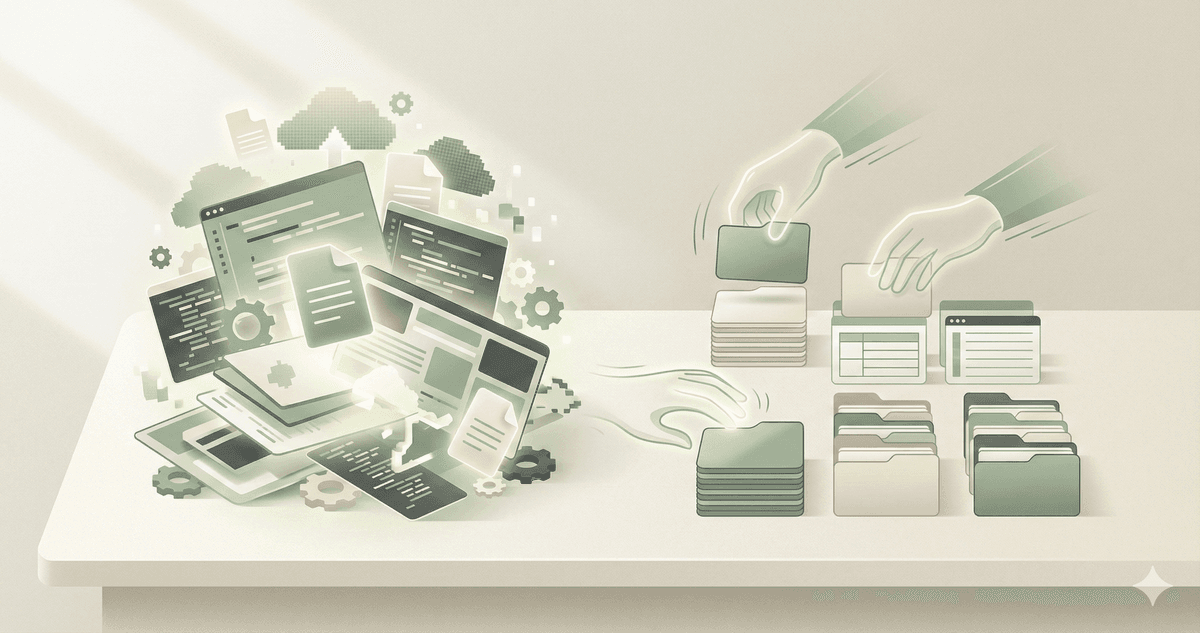
Anthropic just gave free users a massive power-up. Previously, advanced features like file editing and app integrations were locked behind paid subscriptions. Now, even on the free tier, Claude can do more than just chat. It can open an Excel file, make changes, and give it back to you. It can also "talk" to other apps you use, like pulling a design from Canva or summarizing a channel in Slack.
This is a direct response to the growing competition. It turns Claude from a chatbot into a proper work assistant, without costing you a dime. Just keep in mind: the free tier still has daily message limits, so you can't use it infinitely.
What This Means for You
You don't need a credit card to get a "smart" assistant anymore. You can upload that messy spreadsheet or a draft document and have Claude fix it for you directly. It’s perfect for quick productivity wins at work or home.
How to Try It
- Go to Claude.ai.
- Look for the paperclip icon or "Add Content" button near the chat box.
- Upload a file (like a PDF or Excel sheet).
- Ask Claude to "Summarize this" or "Fix the formatting."
Source: Anthropic expands Claude free tier features by Anthropic
ChatGPT Goes Deep
TL;DR: OpenAI's new "Deep Research" tool can browse the web, read multiple sources, and write a full report for you.
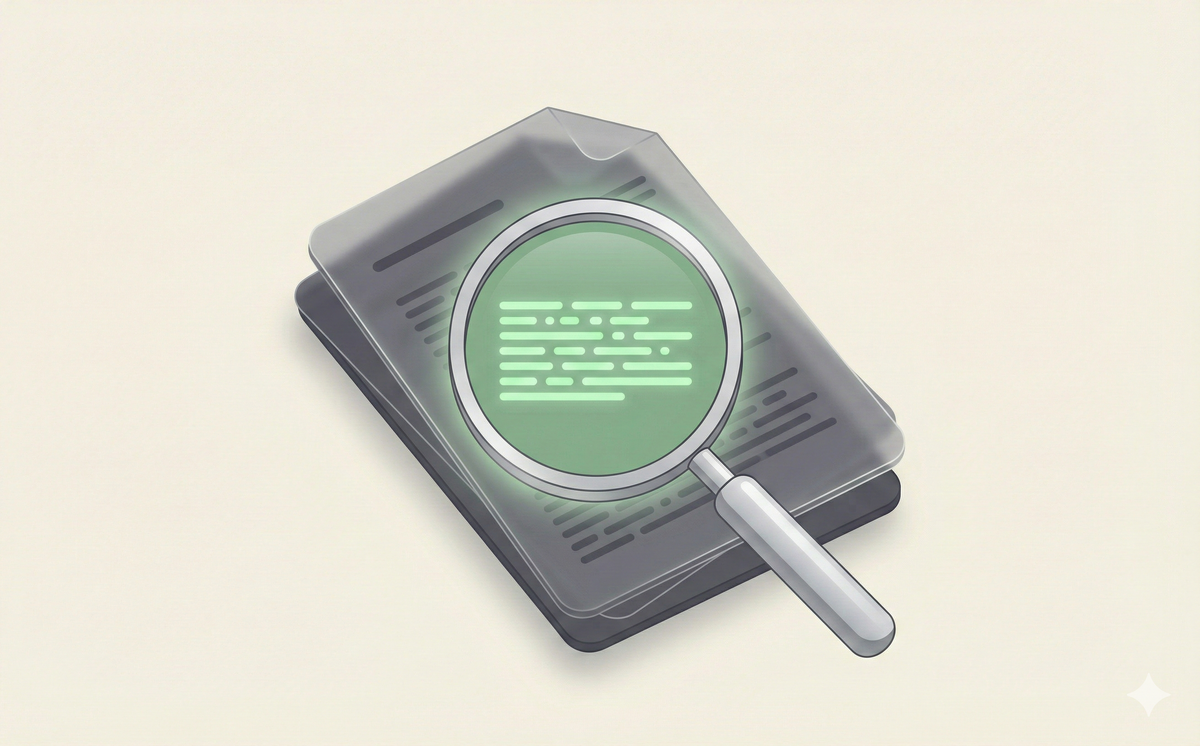
If you've ever tried to use ChatGPT for serious research, you know it can sometimes be a bit shallow. Enter "Deep Research," powered by the new GPT-5.2 model. This tool doesn't just look at one page; it can browse dozens of websites, cross-reference information, and compile a comprehensive report.
It's designed to do the "heavy lifting" of information gathering. Instead of you spending hours Googling and taking notes, ChatGPT does the legwork and presents you with a synthesized document.
What This Means for You
Next time you have a big question—like "Which car should I buy for a family of four?" or "What are the best localized marketing strategies?"—you can get a detailed, researched answer instead of a quick summary. It saves you hours of reading, though we always recommend double-checking its sources.
How to Use It
- Open ChatGPT.
- Click the model picker (top left) and select "Deep Research" (if available).
- Ask a complex question.
- Wait—it might take a few minutes to browse the web and write the report.
Source: Deep Research with GPT-5.2 by OpenAI
Gemini Gets Personal
TL;DR: Google's Gemini can now connect to your Gmail, Drive, and Photos to give you answers based on your life.
Google calls it "Personal Intelligence." This update allows the Gemini chatbot to safely access your personal data within the Google ecosystem. This means you can ask questions like, "When is my next dentist appointment?" (checks Gmail) or "Find that photo of the receipt from last Tuesday" (checks Photos).
It connects the dots between your scattered digital life. Importantly, Google emphasizes that this data isn't used to train their public models, keeping your personal info private to you.
What This Means for You
Your AI assistant finally has context. You don't have to copy-paste emails or describe documents to it. You can interact with your own digital archive as easily as you chat with a friend.
Is It Safe?
Google states that this personal data is not used to train their public AI models. Your emails and photos stay within your personal cloud and are only accessed when you explicitly ask a question that requires them.
How to Turn It Off
If you're not comfortable with this:
- Open Gemini.
- Go to Settings (gear icon) > Extensions.
- Toggle OFF "Google Workspace" (for Docs/Drive/Gmail).
- Toggle OFF "Google Photos".
Source: Gemini Personal Intelligence Update by Google
See you tomorrow.

Want to keep learning?
Get our free AI Starter Kit — 5 lessons delivered to your inbox.
Join readers learning AI in plain English. No spam, ever.